
Affogata Magic Reports
Ask your own AI agent about your community in plain language. It answers from your live Affogata data, with the numbers and the posts behind them.
 GDPR ISO 27001 ISO 27701 ISO 42001 Microsoft SSPA CCPA
https://app.affogata.com/mcpConnect in about 2 minutes
Pick your agent. You sign in with your own Affogata login, no IT ticket.

Connect to Claude
Add Affogata inside Claude
About two minutes, in Claude itself.
- In Customize › Connectors, click Add. The Add custom connector box opens.
- Name: Affogata. MCP server URL: the endpoint below. Then Continue.
- If it asks for an OAuth Client ID and Secret, or shows Advanced settings, use the two values below.
- Authorize with your Affogata login. That is it, Claude now works on your live data.
On Free, Pro or Max you can do all of this yourself. On Team or Enterprise only an Owner can add it, once, for the whole org.
Click any value to select it, then Cmd+C on Mac or Ctrl+C on Windows.
| Field | Value |
|---|---|
| MCP Server URL | https://app.affogata.com/mcp |
| OAuth Client ID | RzZSzVn6g8N7TAyb7T_qn5s3K1d6NID6aDgQZmhdkTA |
| OAuth Client Secret | l-bJZjHsvuQoCGy4EU0pQOV5fYZasWu3eovF3_pc4eU |
Install it on Claude Desktop
About two minutes. One file from Affogata, with your key already inside it. Nothing to install and no terminal.
Claude Desktop recommended · 2 min
- In Affogata, click your account icon top right, choose Settings, then MCP API key in the left menu. Under Install the MCP bundle in Claude Desktop, click Download .mcpb bundle.
Straight there: app.affogata.com/n/account/settings/mcp-api-key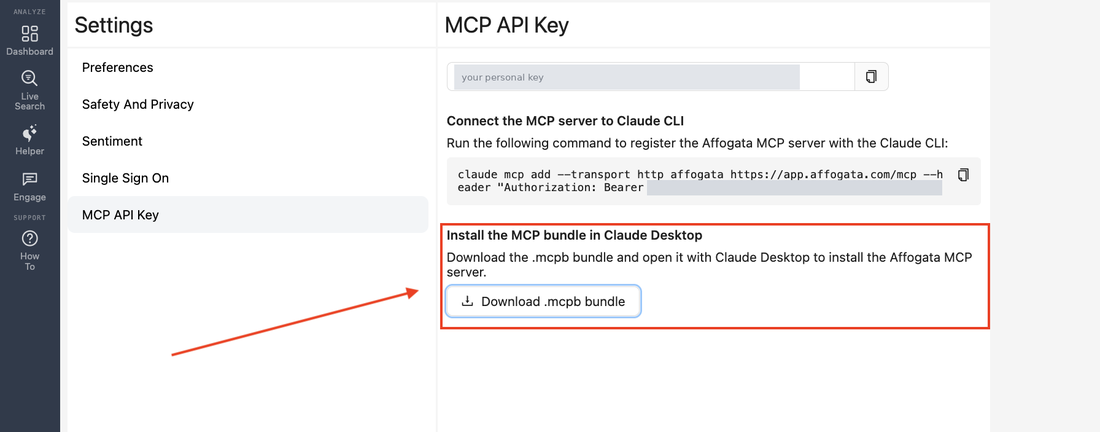
Settings › MCP API key in Affogata. The bundle button is the boxed one at the bottom. - In Claude Desktop go to Settings › Extensions and drag the file onto Drag .MCPB or .DXT files here to install.
Double-clicking the file works too, if your machine opens it with Claude.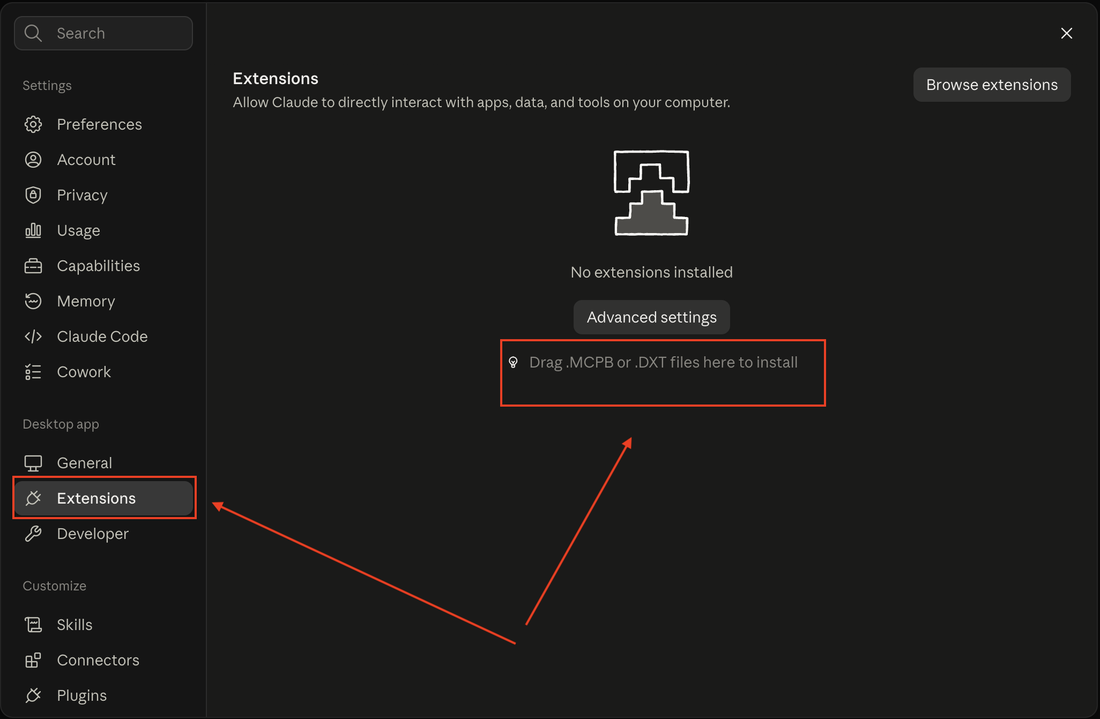
Claude Desktop › Settings › Extensions. Drop the file here. - Claude shows what the bundle is. Click Install, then switch Enabled on.
If Affogata does not appear, or does not answer right away, close Claude Desktop and open it again. That usually settles it.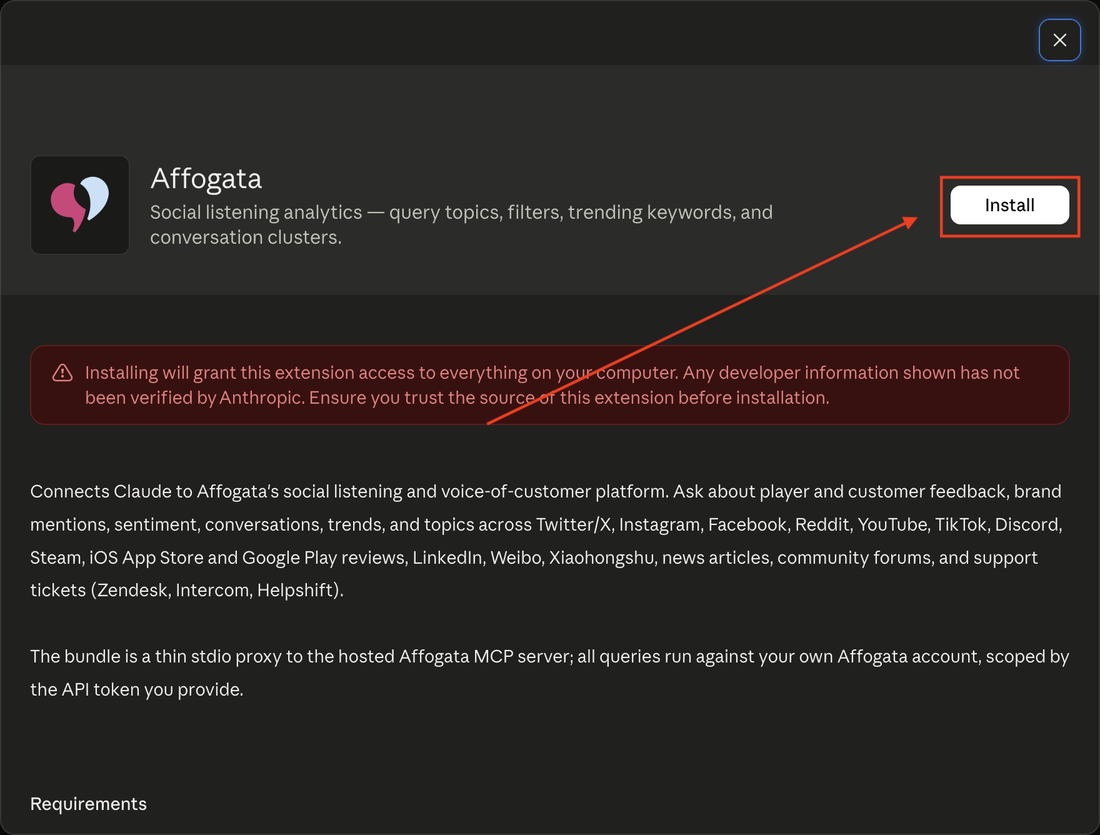
Claude shows what it is. Click Install. 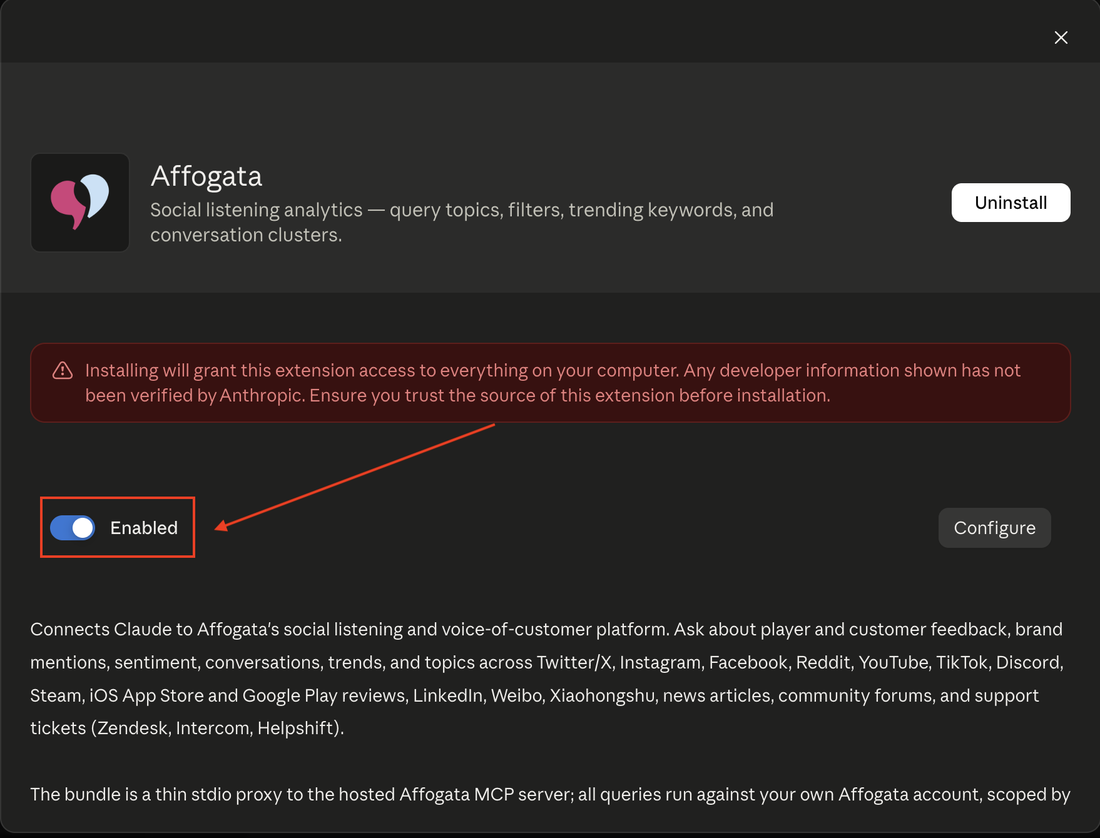
Then switch Enabled on. - Worth doing once: Customize › Connectors › Affogata › Tool permissions, set Read-only tools to Always allow. Otherwise Claude asks your permission on every single question.
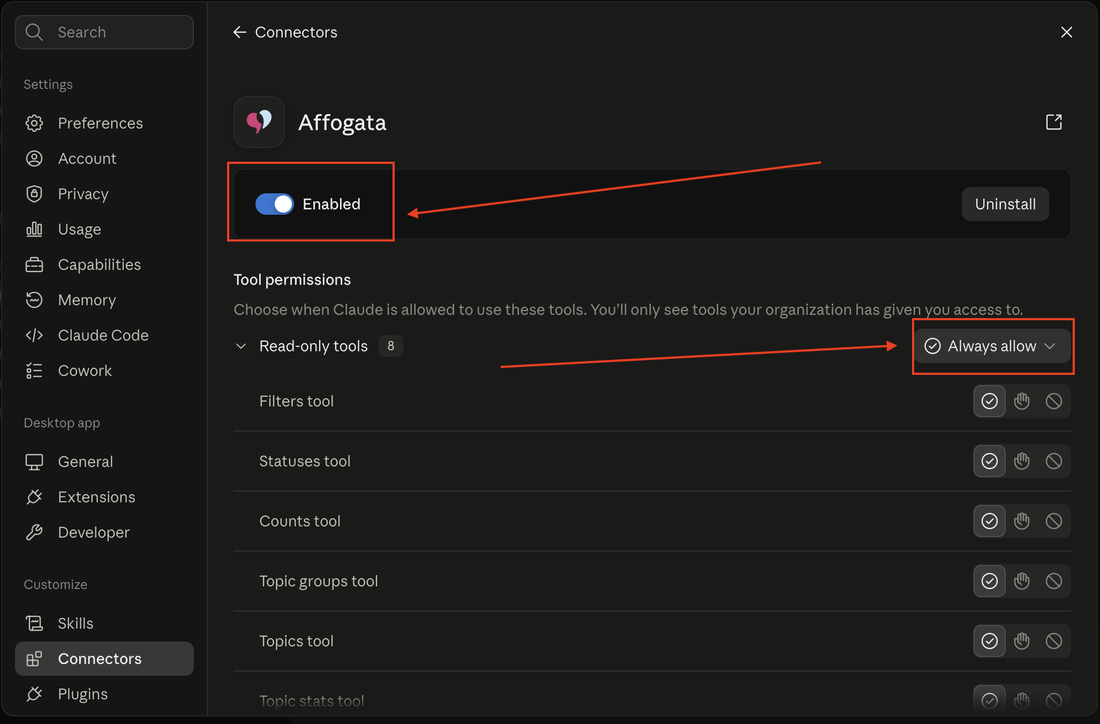
Tool permissions, Read-only tools set to Always allow. - Check it worked. Ask Claude "list my Affogata filters" and you should get your own saved searches back.
You drop the file in under Extensions, but once it is in, it is listed under Customize › Connectors with the type Desktop. That is where the tool permissions live.
app.affogata.com/mcp using your own key and hands the answer back. It does not read your files.Claude Code one command
The same account settings › MCP API key page shows a claude mcp add --transport http command with your key already in it. Copy it, run it in your terminal, done. It connects straight over HTTPS, with no bridge package to download and no Node.js of your own.
Edit the config by hand last resort · needs Node.js
Only if your org blocks bundles as well. This is the old route and the only one that still needs Node.js installed. Check with node -v in a terminal, anything from v18 up is fine.
- Claude Desktop › Settings › Developer, then click Edit config. That opens
claude_desktop_config.json.
If it opens a folder instead of the file, the file is at
Mac:~/Library/Application Support/Claude/claude_desktop_config.json
Windows:%APPDATA%\Claude\claude_desktop_config.json - Add this inside the file, with your own key in place of
YOUR_MCP_API_KEY:
{ "mcpServers": {
    "Affogata": {
      "command": "npx",
      "args": ["-y", "mcp-remote", "https://app.affogata.com/mcp",
               "--header", "Authorization: Bearer YOUR_MCP_API_KEY"]
    }
} }"Affogata" next to whatever is already inside mcpServers rather than pasting over the whole file. Then fully quit and reopen Claude, Cmd+Q on Mac or quit from the system tray on Windows.If something goes wrong troubleshooting
- The bundle will not install, or Extensions is missing
- Bundles are a separate admin setting from connectors, so an org can lock both. Ask your Claude Owner to allow the Affogata bundle. It is a much smaller ask than opening a company connector.
- Installed and enabled, but Claude does not use it
- Open Customize › Connectors › Affogata and look at Tool permissions. If they are set to ask each time, set Read-only tools to Always allow.
- I installed it and now I cannot find it
- It is under Customize › Connectors, listed with the type Desktop. Extensions is only where you drop the file in.
npm error code SELF_SIGNED_CERT_IN_CHAIN- Hand-edit route only. Your corporate network inspects secure traffic and re-signs it, and npm does not trust that certificate even though your machine already does. Try
NODE_OPTIONS=--use-system-cain front of the command, or run the setup once on home wifi or a phone hotspot so the package is cached, then go back to the office network. This whole class of problem is why we recommend the bundle instead. Error: Not ready after 60 seconds- Hand-edit route only. The first run has to download a bridge package and Claude gives up after 60 seconds. Run the same command once in a terminal to warm it up, then restart Claude.
npxnot found, or nothing happens at all- Hand-edit route only. Node.js is not installed, or the terminal was not reopened after installing it.
node -vwill tell you. - Which key is this, exactly?
- Your personal MCP API key from account settings › MCP API key. It is not the OAuth Client ID and Secret shown in the left column. Those two are for the company connector and are not interchangeable.
Your key sits inside that file, so treat it like a password.
What your team sees. This key is yours alone. It only ever reaches what your own Affogata account can already see, every call is logged, and you can revoke it any time from the same settings page.

Connect to ChatGPT
Your company ChatGPT
On Business, Team and Enterprise, a workspace owner turns on Developer Mode and adds the connector once.
| Field | Value |
|---|---|
| MCP Server URL | https://app.affogata.com/mcp |
| OAuth Client ID | VaUO2UR0IgmdBv09CDMfLz2zgrUrm486Qr5JNP69Gqk |
| OAuth Client Secret | p39cGCU3BMtqfxjZ-X8wL7Pt7sLrCoJiiP-_ZKw0XQ0 |
| Authorization URL | https://app.affogata.com/authorize |
| Token URL | https://app.affogata.com/token |
- Open Settings › Connectors and in Advanced turn on Developer Mode.
- Add a custom connector with the details above. You do not need to fill a scope field.
- Save, then authorize with your Affogata login.
- In a new chat, open the tools menu and turn on the Affogata connector.
Your own ChatGPT
If IT will not open it on the company workspace, Developer Mode is a personal toggle on your own paid ChatGPT account. Nobody has to approve it for you. Same fields as the left column.
- Log in to your own ChatGPT account, not the company workspace.
- Settings › Connectors › Advanced › Developer Mode, switch it on.
- Add custom connector, paste the URL, Client ID and Secret from the left, authorize with your Affogata login.
- Start a chat, open the tools menu, tick Affogata.
Custom connectors need a paid plan, and OpenAI keeps moving these screens around between rollouts. If what you see does not match, write to us and we will get on a call and set it up with you.

Connect to Gemini
Your company Gemini
An admin adds it once in the Gemini Enterprise console and enables it for members.
| Field | Value |
|---|---|
| MCP Server URL | https://app.affogata.com/mcp |
| OAuth Client ID | l1SlJTZrxW8A-Oyf-AVFv2wRYbdVdfE9Ltm_hv_ult0 |
| OAuth Client Secret | JUSWgRgUL1kqOv-hEZ0wAHKoqhGHQsNpldeJ5GS6Q88 |
| Authorization URL | https://app.affogata.com/authorize |
| Token URL | https://app.affogata.com/token |
| Scope | api |
- Gemini Enterprise console › Data connectors › Create › Custom MCP Server.
- Name it Affogata MCP and paste the URL above.
- Choose OAuth and enter the values above. Scope is
api. - Save and sign in to Affogata once. All 8 tools show under Actions, use Reload custom actions to confirm.
- Enable it for your members.
Three things to get right on the Google side. Leave PKCE off, allowlist the Affogata domain on your project (you may need to relax an org policy for custom MCP servers), and know that the redirect URI Gemini uses, https://vertexaisearch.cloud.google.com/oauth-redirect, is already whitelisted on our side. PSC and VPC-SC are not supported by Google while this connector is in preview.
Gemini CLI, on your machine
Gemini CLI is free, installs with npm and reads its own config file. No console, no org policy, no ticket.
- Install it:
npm install -g @google/gemini-cli - Open
~/.gemini/settings.jsonand add:
{ "mcpServers": {
    "Affogata": {
      "httpUrl": "https://app.affogata.com/mcp",
      "headers": {
        "Authorization": "Bearer YOUR_MCP_API_KEY"
      }
    }
} }- Replace
YOUR_MCP_API_KEYwith your own key from account settings › MCP API key. - Run
gemini, then/mcpto check the Affogata tools are listed.

Connect to GitHub Copilot
If most of your org sits on a free Claude plan and hits prompt limits, Copilot is a good route. Same endpoint, but it authenticates with your personal Affogata MCP key rather than the OAuth pair, so there is no company connector for anyone to approve.
One policy toggle, that is all
There is no Affogata connector to add on the Copilot side. The only thing an admin may need to do is allow MCP servers in your organisation's Copilot policy. Many orgs already have it on.
| Field | Value |
|---|---|
| MCP Server URL | https://app.affogata.com/mcp |
| Header | Authorization: Bearer YOUR_MCP_API_KEY |
| Your key | account settings › MCP API key |
VS Code, on your machine
Copilot in VS Code reads a config file you own. Nobody else has to touch it.
- In VS Code press Ctrl/Cmd + Shift + P and run MCP: Open User Configuration. That opens your own
mcp.json, good across every project. - Add this:
{ "servers": {
    "Affogata": {
      "type": "http",
      "url": "https://app.affogata.com/mcp",
      "headers": {
        "Authorization": "Bearer YOUR_MCP_API_KEY"
      }
    }
} }- Replace
YOUR_MCP_API_KEYwith your own key from account settings › MCP API key. - Save, open Copilot Chat in Agent mode and the Affogata tools appear in the tools picker.
No Affogata user yet for someone on your team? Ask us at info@affogata.com.
See a real answer
Real pulls from Affogata's public sandbox. A snapshot, not live, so the numbers do not move while you read them.
- “Best game ever” praise for CoD Mobile
- Overwhelmingly positive player feedback
- The latest game update
- Hackers & anti-cheat false bans
- Performance: lag & bugs
- Pay-to-win & matchmaking
- Launch crashes
Your first five minutes
Paste this first, once you are connected.
"Using Affogata, list the searches I have access to. Then for my main brand give me a health check on the last 30 days: impact score, volume, sentiment split, top loved themes and top complaints, and what changed versus the month before."
Then push it: "turn that into a one page HTML report in our brand colors", "add the clusters and tell me which are new", "compare it to last quarter".
A new way of using Affogata, not a new product to learn
Anyone on your team who already has an Affogata login can use it. Community, support, product, insights, marketing, leadership. You do not need to be technical for any of this.
Affogata does the hard part
Every data point in the period, not a sample, turned into something a person or an AI can actually read.
| Where your players and customers talk | What we collect |
|---|---|
| Communities | Discord, Reddit, Steam |
| Reviews | App Store, Google Play, Trustpilot |
| Social | X, TikTok, Instagram, YouTube |
| Support | Zendesk, Intercom, Helpshift |
| Regional | Weibo, RED, news, local networks |
Spam and noise removed, replies read in context, every language.
Sentiment and impact score on every item.
Conversation clusters computed on the full data set, plus your own custom topics.
Personal details masked before anything leaves the platform.
Three things people build in the first week
Pages like these, live and shareable. The numbers below illustrate the format, they are not your data.
The weekly community read
Impact score, data points and negative share across the last five weeks, with a line on what actually moved. Example: impact 9.0, 1,284 data points, 4% negative, "sentiment stayed above 8.4 every week, no real dip".
Then push it: "Now break that down by channel and show me the top cluster per week."
The release check, your event lined up against the data
Two weeks before versus two weeks after. Example: volume +38%, net sentiment +0.9, 6 new clusters, what grew (new event mode, matchmaking speed, the new skin line) against what cooled down (progression pace, energy costs).
Then push it: "Do the same for the 3 releases before this one and put them side by side."
The one you design yourself
This is the part people underestimate. You are not stuck with one report shape. Say it out loud and you get it: "Build it as a one page HTML in our brand colors, dark background, our logo top left." "Make it a PDF I can attach to the monthly deck, one page per title." "Add a section that maps each complaint cluster to the team that owns it."
A CSV export, or your AI connected to Affogata
Most people today export a CSV and paste it into an AI. Here is what that actually gives you against a live connection.
| A CSV export into your AI | Your AI connected to Affogata | |
|---|---|---|
| What it reads | A capped, chunked export. None of the analysis travels with the file. | The whole analyzed layer, live. Sentiment, impact, engagement, clusters and topics come with it. |
| Full data or a sample | A sample. Exports cap, and an AI skims a big file rather than reading all of it. | Every data point in the period, never a sample. |
| What it costs in tokens | Millions, which is exactly why it skims instead of reading. | Cheap and complete. We do the heavy analysis and hand over the result, not the raw pile. |
| Clusters and your topics | None. It invents its own grouping and names it differently every time. | Your real clusters and the Boolean topics your team built, every language. |
| Week to week | New export, new themes. Nothing you can trend. | Same definitions every run, so a weekly report really compares. |
| Reports | Whatever the AI improvises from the file. | HTML or PDF in your own design, rebuilt on request. |
| Where your data ends up | A copy sitting in a personal AI account, outside your controls, that nobody can delete later. | Nothing stored. Your login, your permissions, every call logged. |
What you can actually do with it
| Design the report yourself | Ask for an HTML page or a PDF and describe how you want it to look. Your colors, your logo, your sections, the layout your team already reads. Do not like it? Say what to change and it rebuilds in seconds. |
| Compare data with events | Line up your update, your campaign, your outage or your announcement against what people said before and after. Two weeks before versus two weeks after, in one question. |
| Use the conversation clusters | The AI reads the same semantic clusters you see in Affogata, computed over the full data set and never a sample, noise and spam already stripped, replies read in context, all languages. It does not re-analyze raw text and give you a different answer every week. |
| Use your custom topics | The Boolean topics your team already built are available as tools, so answers come back in your own vocabulary, not in generic categories. |
| Work across everything | Social, communities, app store and Steam reviews, regional networks and your support tickets. Whatever is connected to your account is in scope. |
| Keep it repeatable | The same question next week gives you a comparable answer. Save the prompt, run it every Monday, hand it to someone else on the team. |
What our teams ask most
"Why did the impact score move on Aug 27? Show me the positive and negative counts for that week."
"Give me the community read for last week. Top themes, what is rising, what is cooling down."
"Compare our two biggest titles this month on sentiment and volume."
"What are people complaining about in the last 7 days that they were not complaining about last month?"
"How did the last update land? Compare the 2 weeks after it to the 2 weeks before."
"Take the biggest negative cluster and show me the 10 posts with the most engagement inside it."
"Turn that into an HTML report in our brand colors that I can share with the team."
What each team gets out of it
Same connection, very different day to day. This is roughly how it splits across the teams we work with.
| Team | What it changes for them | A question they actually ask |
|---|---|---|
| Community and social | Know what the community is on about before it becomes a thread everyone is quoting, and draft replies with the real context in front of you. | "What is rising in the last 48 hours that was not there last week, and show me the loudest 5 posts behind it." |
| Support and CX | See tickets and public complaints as one picture, catch the issue about to flood the queue, and back a fix request with numbers. | "Compare ticket themes to social themes this month. What are people complaining about publicly that is not reaching our queue?" |
| Product and live ops | Read every release without waiting for a report, and line up your own event dates against sentiment and volume. | "Take these 4 release dates and for each give me sentiment, volume and the top 3 negative clusters in the week after." |
| Insights and analytics | Stop rebuilding the same pull. Get structured numbers straight into your own analysis instead of exporting CSVs and starting from zero. | "Weekly cluster volumes and sentiment per title for the last 12 weeks, as a table I can paste into a sheet." |
| Marketing and brand | Measure a campaign in the words people actually used, not just reach, and see how you land next to the titles you care about. | "How did the collab announcement land by region, and what did people compare it to?" |
| Leadership | One honest read before the meeting, in one minute, without asking three people to prepare it. | "One page: how is the portfolio doing this month versus last, what got better, what got worse, and what would you do about it." |
If something does not connect
| Add connector fails right away | Wrong Client ID or Secret for that platform. Each agent has its own pair, this is the number one cause. |
| Connected but no tools show | Reload the tool list. In Gemini use Reload custom actions, in Claude Desktop restart. |
| It worked, now it does not | You probably switched business profile. Disconnect and reconnect for a fresh session. |
| Token exchange fails on Gemini | PKCE is on. Turn it off. |
invalid_scope error | Remove offline_access. The only scope we accept is api. |
| Your IT blocks connectors | Common with ChatGPT developer mode. Claude, Gemini or Copilot are the usual alternatives, and we are happy to join a call with your IT. |
Questions we get asked
GDPR ISO 27001 ISO 27701 ISO 42001 Microsoft SSPA CCPAIs it the same data?
Yes, with the same PII masking already in place on your account. Each person sees only what their account sees, and every action is logged.
Where is it stored?
Nowhere new. Calls are live and transient, nothing kept beyond the session.
Why is this safer than today?
The alternative is a CSV in a personal AI account, which nobody can govern or delete later.
Every app. One layer. Pick where you work.
Everything Affogata can do, in one screen. Dashboards and inbox if you live in the UI. MCP, DIL and API if you bring the data to your own tools. Each card tells you what it does, no hunting.
Analyze
understand what players are sayingDashboard
Search
Conversation Clusters
Helper
Act
respond and stay aheadEngage
Reply to Mentions
Alerts
Enablement
your CX data, in your stack - the layer itselfMCP
DIL
API
MCP Apps
pre-built skills, open and runCross-Brand Report
Branded Report
Super Agent
Configure
shape the data your wayCustom Topics
Spam Rules
Auth Profiles
Admin
control and visibilityStep-by-step guides & videos
Short walkthroughs for each feature. Click any card to open the guide or video. Need something specific and can't find it? Ask the AI.
Ask anything, get pointed to the right place
The support AI knows every app and guide on this page. Ask it how to do something, or where to start, and it walks you there.
Not sure where to start?
Tell it what you're trying to do. It answers from the Affogata knowledge base and links you to the exact guide or app.