How to Set Up Executive Email Reports
Automated AI-generated summaries delivered to your team's inbox. No login required.
Overview
📧
What are Executive Email Reports?
Automated email summaries that deliver your Affogata insights directly to your team's inbox. Each report includes conversation cluster summaries, sentiment trends, top topics, and key highlights from the period. Recipients don't need an Affogata account - perfect for executives, stakeholders, or partner teams who need the insights without accessing the dashboard.
📅
How often can I receive reports?
You can choose daily or weekly delivery. Weekly is most popular - typically set to arrive on Friday or Monday morning. Daily works well for teams monitoring live events, game launches, or high-activity periods. You can change the frequency anytime.
Setup Guide
⚙️
How do I set up my first email report?
Go to your
dashboard, click the
Email icon in the top toolbar, select
"Create Email Report", choose your search/brand, set the frequency (daily or weekly), pick the delivery day and time, add recipient email addresses, and save. The first report will be sent at the next scheduled time.
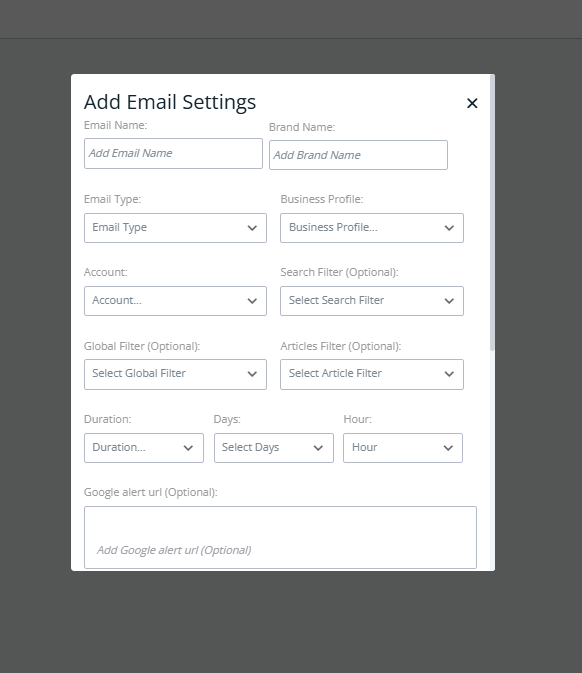 The Add Email Settings panel — fill in the Email Name, Brand Name, Email Type, schedule, and optional filters.
👥
Who should receive the reports?
Common setups: (a) Community/CS team - weekly digest of top themes and sentiment shifts, (b) Product leads - weekly summary focused on feature feedback and bug reports, (c) Executives/Leadership - weekly high-level sentiment and impact overview, (d) Marketing team - weekly brand health and competitor mentions. You can create different reports for different audiences, each with different searches.
🎯
Can I customize what's included in the report?
The report automatically includes the most relevant insights from your selected search: conversation cluster summaries, sentiment breakdown, volume trends, top content, and notable spikes. The AI picks the most impactful stories. To focus on specific topics, create a filtered search and attach the email report to that search.
Best Practices
🕐
What's the best delivery time?
For weekly reports, Friday afternoon works well for teams that prepare Monday presentations. Monday morning is great for teams that want a fresh-week overview. For daily reports during launches, early morning (8-9am in your team's timezone) ensures the team starts the day informed.
📊
How do I set up reports for multiple games or brands?
Create a separate email report for each search/brand. For example: one report for "Monopoly Go - All Channels", another for "Brawl Stars - Community", and a third for "Competitors Overview". Each can have different recipients and schedules. This way each team gets only what's relevant to them.
🌍
Can I send reports to different regions/teams?
Yes! Create region-specific searches (e.g., "Brand - APAC" filtered by relevant languages and platforms), then attach email reports to those searches with the regional team as recipients. Each region gets insights relevant to their market.
Managing Reports
✏️
How do I edit or pause a report?
Go to your dashboard, click the Email icon, and you'll see all active reports. Click any report to edit recipients, frequency, or timing. You can pause a report without deleting it and re-enable later. Great for pausing during quiet periods and re-enabling before launches.
💡
Pro tip: Combine with Slack for maximum visibility
Set up email reports for formal stakeholder communication, then share highlights in your team Slack channel for quick discussion. Some teams forward the email report to a dedicated Slack channel so the whole team can see it and react in real-time.
Questions? Reach us at